

Here are three options for typing raised ᵘ on PC:
- Install our raised ᵘ keyboard (recommended)
- Copy and paste from Windows Character Map
- Create a custom keyboard shortcut
Installing our raised ᵘ keyboard
Similar to previous Innu language keyboards, our keyboard allows you to use your regular keyboard as usual, but with the addition of a pre-programmed keyboard shortcut for typing raised ᵘ.
This is our recommended method for typing raised ᵘ on PC, as it is quick and easy to install and allows you to type raised ᵘ anywhere with the shortcut CTRL+ALT+u.
1. To start, download the keyboard installer by clicking here.
2. Choose a location to download the file.
3. At this stage, depending on your browser, you may see a warning message saying the download has been blocked for safety reasons. If this happens, simply click on the warning that appears (or the downloads icon if you miss the pop-up) and then click “Download suspicious file“/”Download Anyway“.
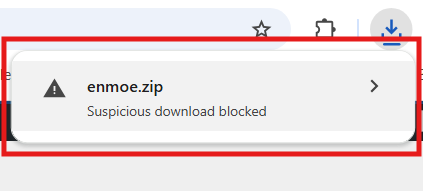
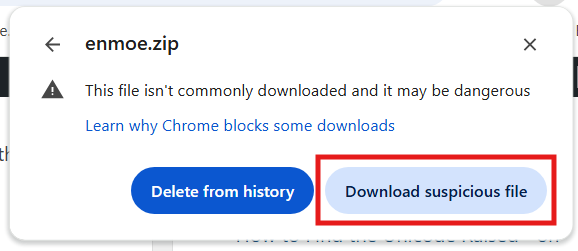
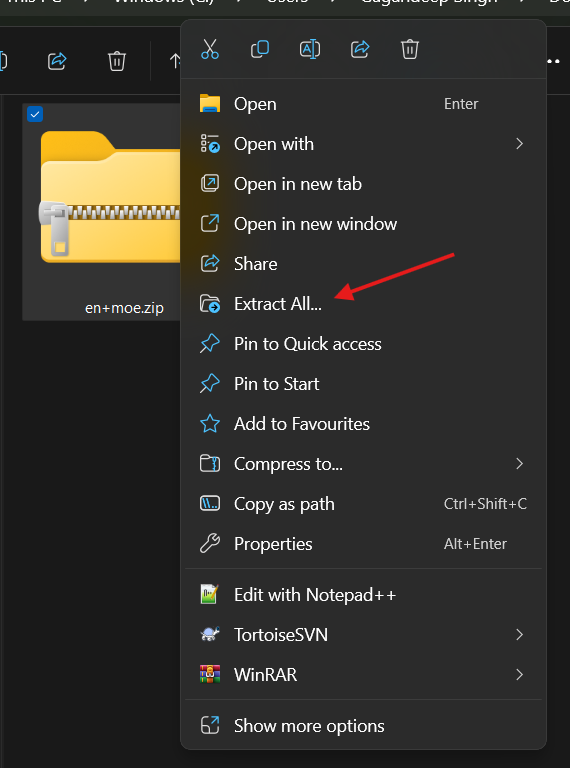
4. Once the file has downloaded, locate the zip folder and left click to open the options menu, then click “Extract All…“.
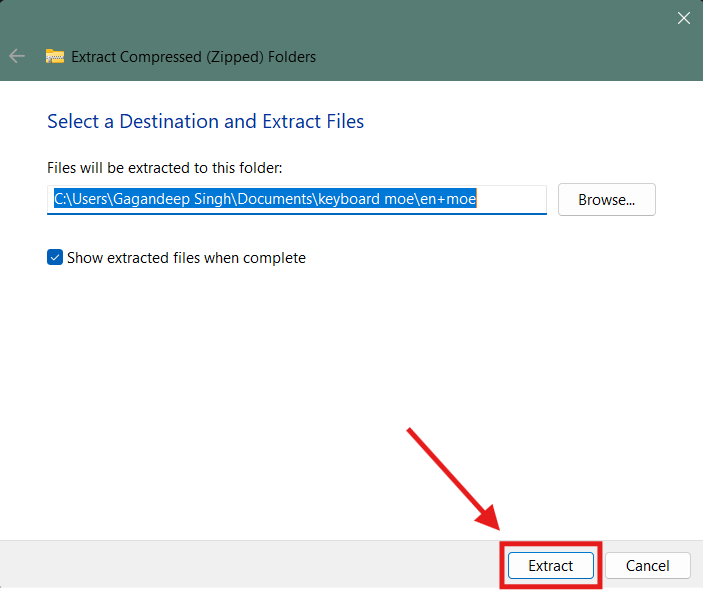
5. Then confirm by clicking “Extract“.
6. Open the unzipped folder and double click on the “setup.exe” file.
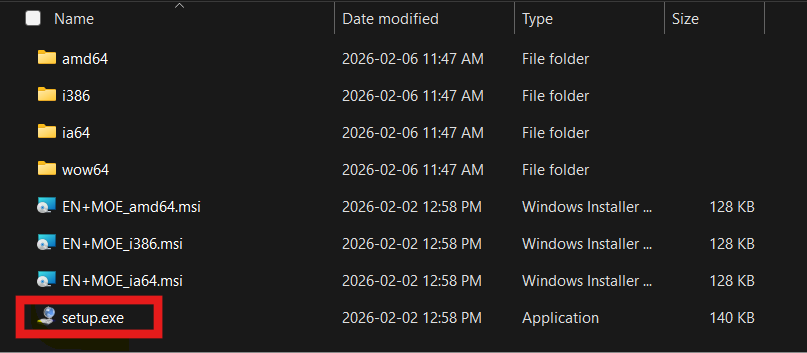
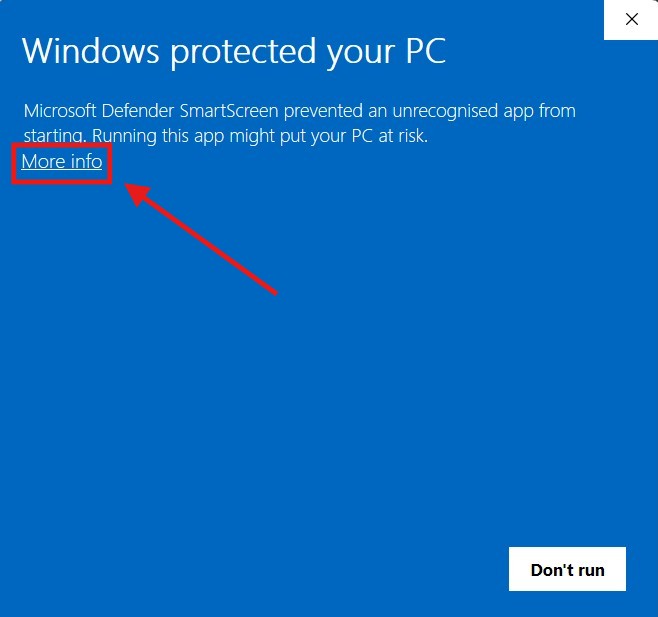
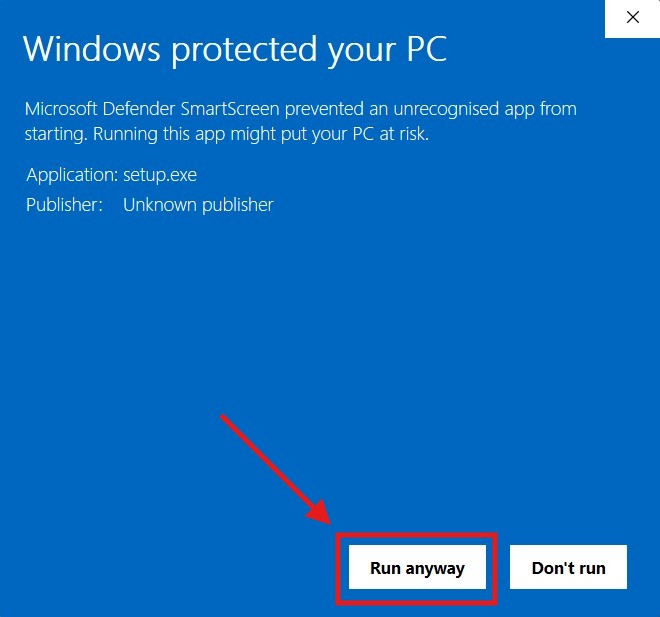
7. Another warning will pop up from Windows saying it prevented an unrecognized app from running. To clear this error, click on “More info” underneath the warning. A new button with “Run anyway” should now appear. Click it to start the installation.
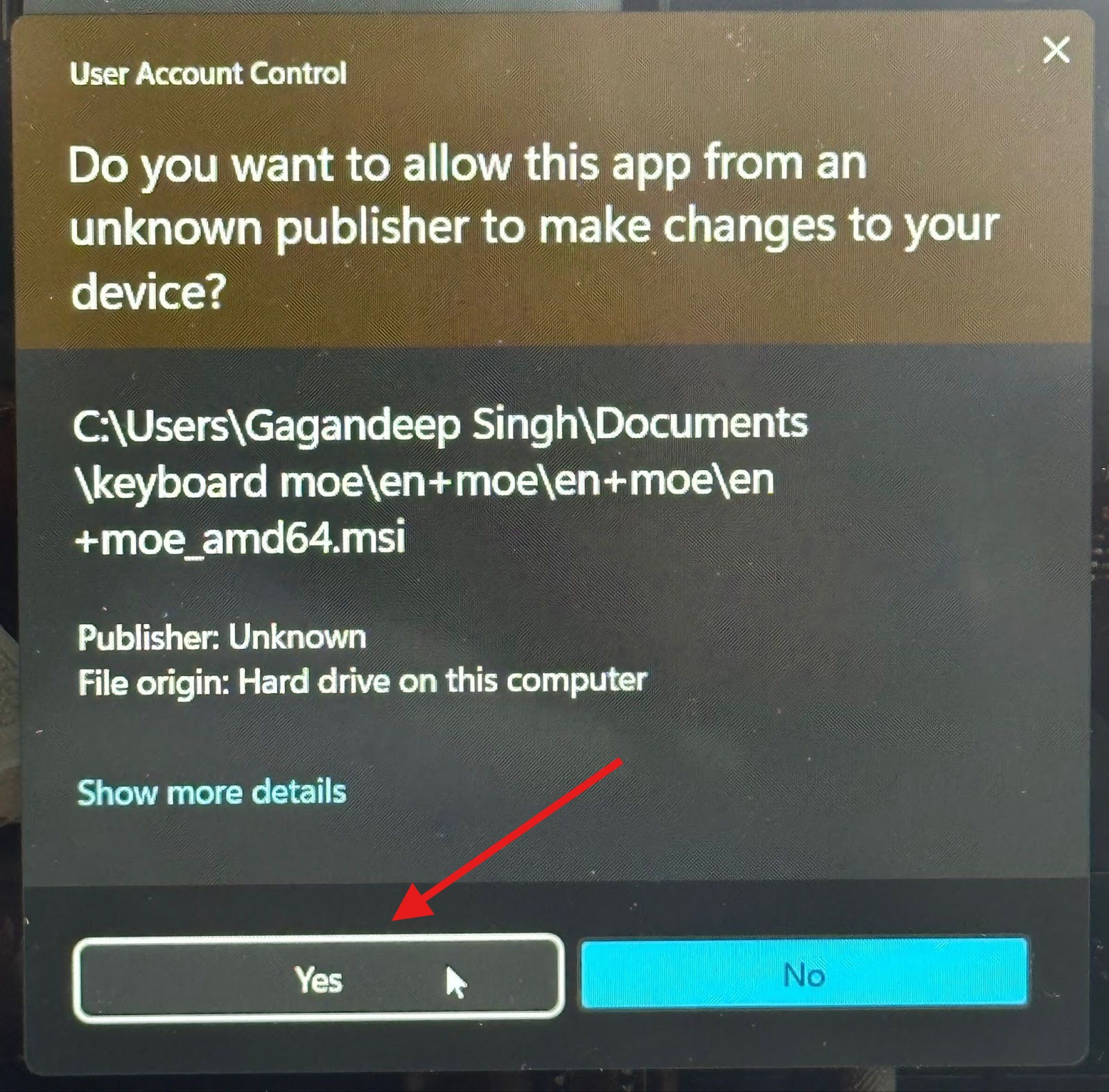
8. This will prompt the User Account Control box to appear in your taskbar. Click it if it does not open automatically.
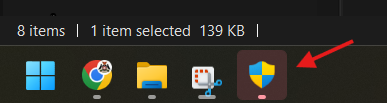
9. Then click “Yes” in the window that opens.
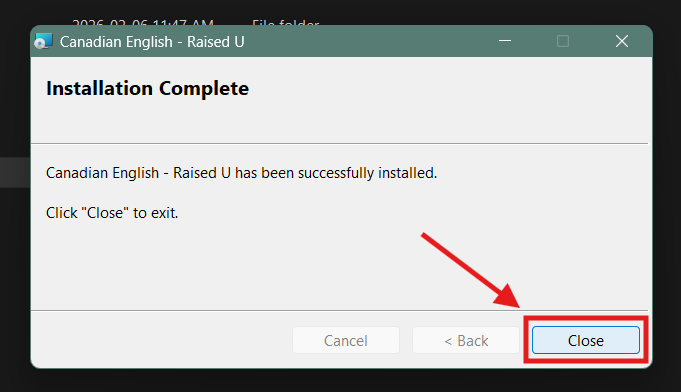
10. After the installation completes, you should see a “Installation Complete” box pop up. Hit “Close“.
11. Now, in order for the keyboard to work properly, you must restart your computer. If you try to use the raised ᵘ keyboard immediately, without restarting, it will not work and may not even be selectable.
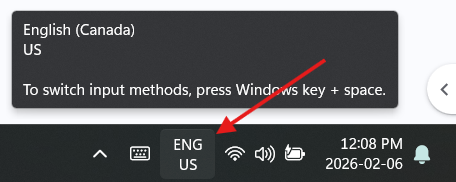
12. After restarting, click on the “ENG” language button at the bottom of your screen on the left end of your taskbar.
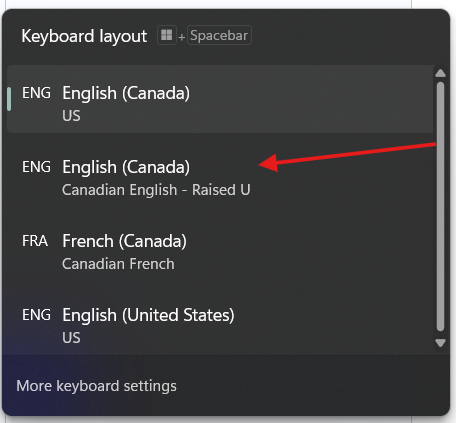
13. This should open a list of installed keyboards on your device. Click on “Canadian English – Raised U” to select and enable the raised ᵘ keyboard.
Now you can type raised ᵘ anywhere by using the keyboard shortcut CTRL+ALT+u