

Creating a keyboard shortcut for typing raised ᵘ
Another way to be able to type a raised ᵘ anywhere on Windows is to create a keyboard shortcut. Just like Ctrl+C copies and Ctrl+V pastes, we can create custom keyboard shortcuts to type specific Unicode characters like the raised ᵘ. This method is slightly more complicated than installing our custom keyboard.
In the following instructions, we guide you to create a shortcut that will allow you to type a raised ᵘ with: Control ALT u
In order to do this, you must first install “PowerToys”. This is an application created by Microsoft and you can install it via the Microsoft Store.
1. To install the app, you can either use the following link to visit the Microsoft Store and click “View in Store”: https://apps.microsoft.com/detail/xp89dcgq3k6vld?hl=en-US&gl=CA
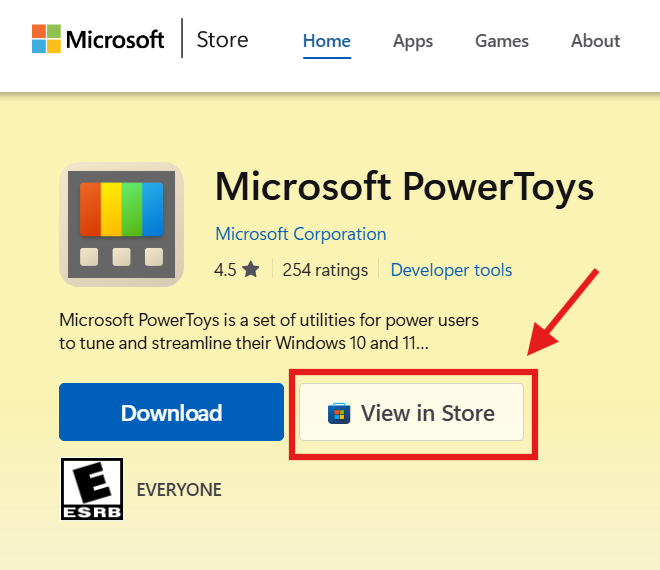
Or open the Microsoft Store directly from your Start menu and search “PowerToys” and click the “Microsoft PowerToys” listing.
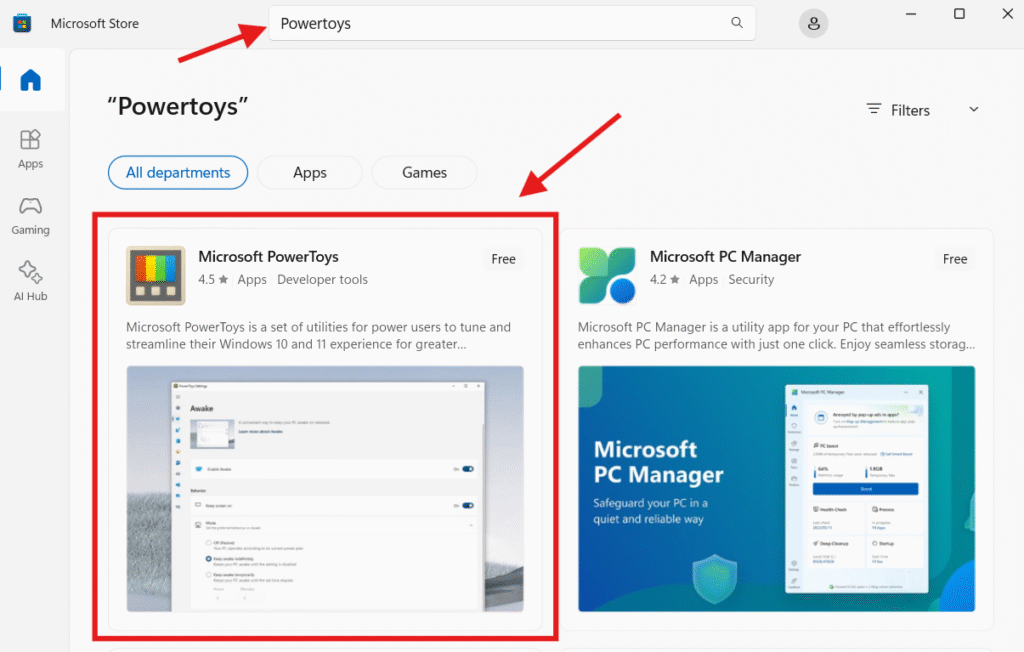
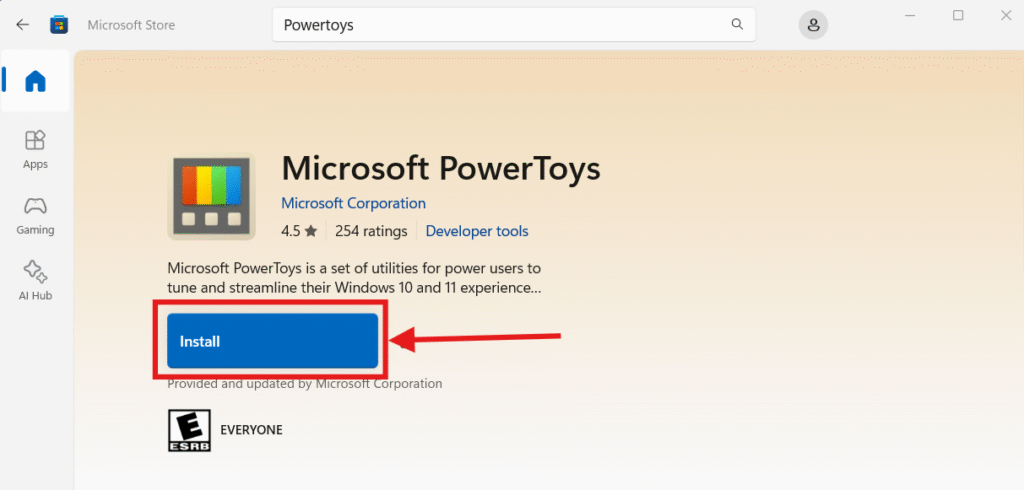
2. This will open the Microsoft Store PowerToys listing where you can directly install PowerToys instead of having to download and install a program file. Simply click “Install” and wait for the application to finish installing.
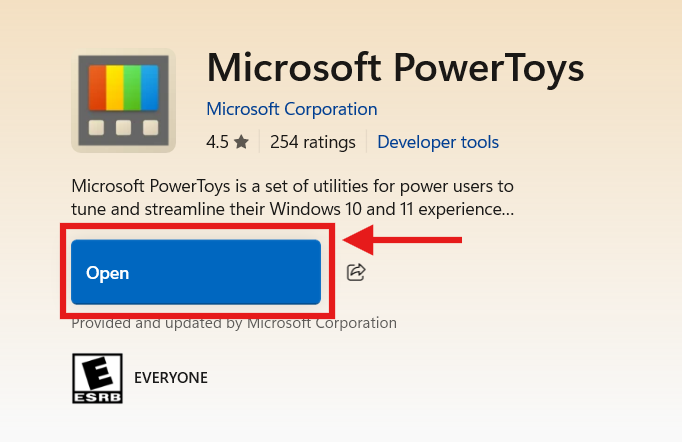
3. After PowerToys has finished installing, click “Open” to launch the application.
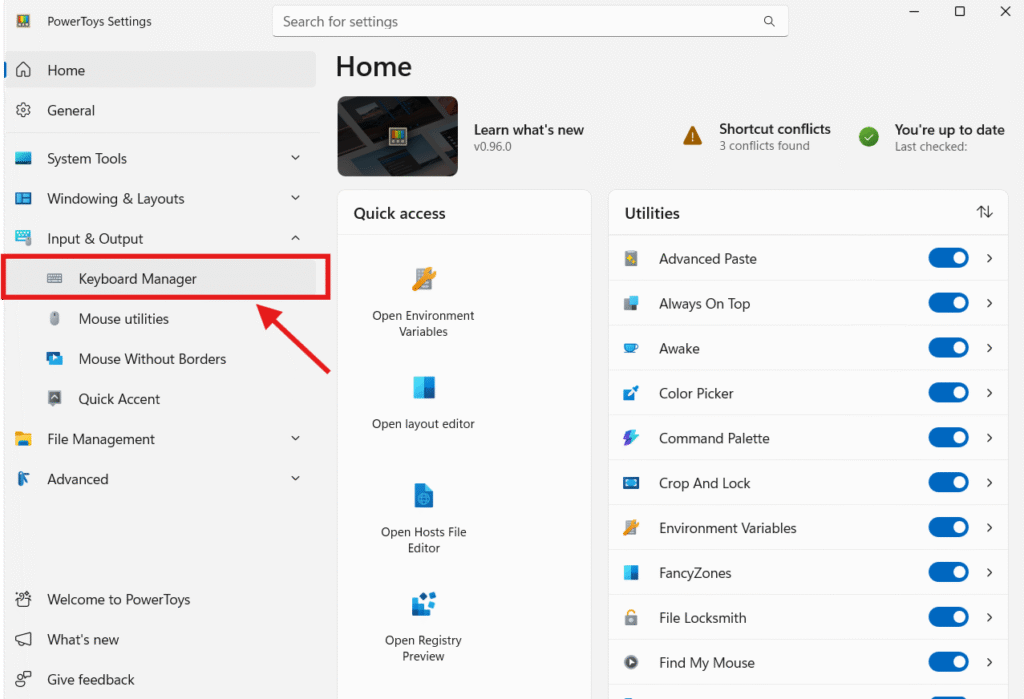
4. After PowerToys opens, look for the “Input & Output” section in the menu on the left-hand side of the window and click to expand it. Then click on “Keyboard Manager”.
Note: If your PowerToys display looks somewhat different than this, you can try closing the program and re-launching it from the “Start” menu or look around and see if you can find the “Keyboard Manager” option.
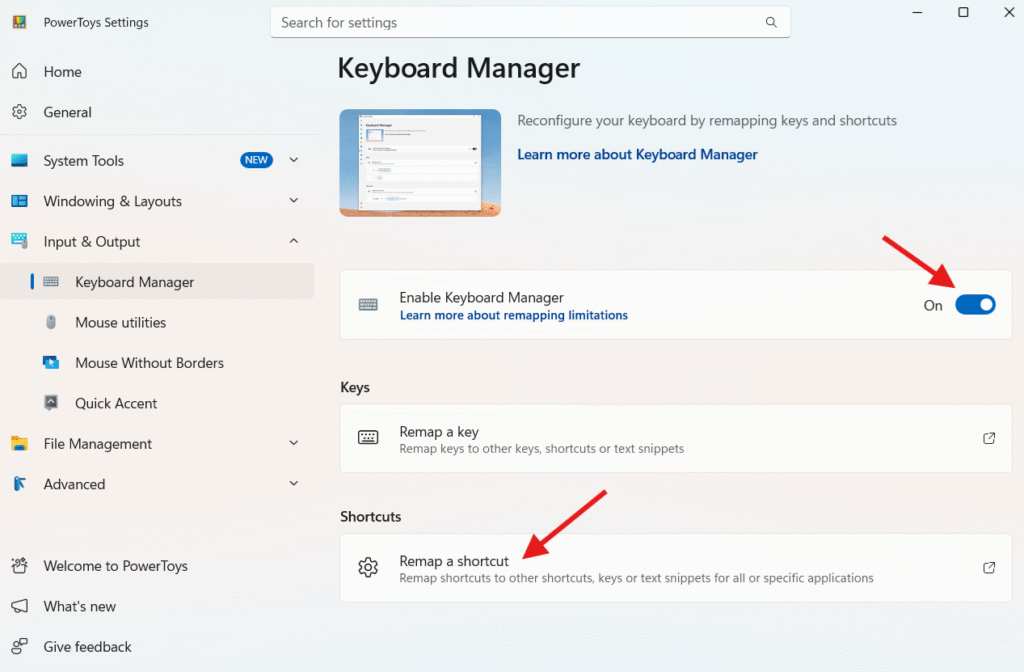
5. Once you have the PowerToys “Keyboard Manager” open, click to toggle on “Enable Keyboard Manager”. Then, under “Shortcuts”, click “Remap a shortcut”.
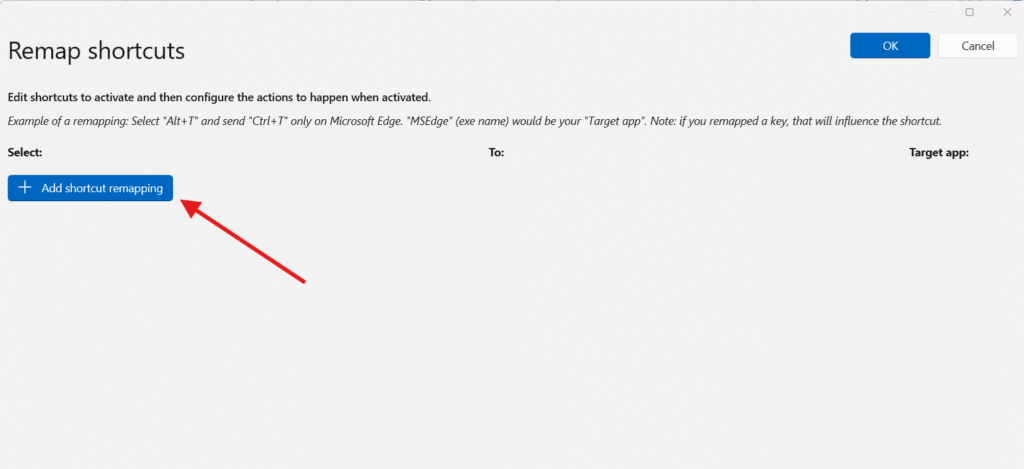
6. The “Remap shortcuts” window will then open. Click “Add a shortcut remapping”.
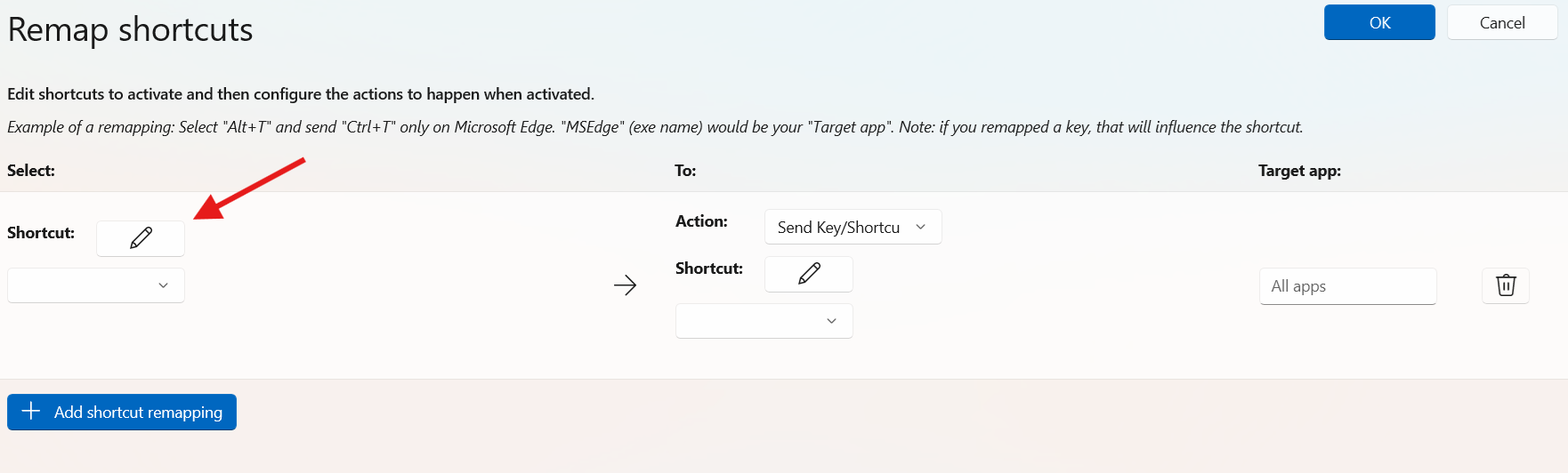
7. A new area should appear where you can input the shortcut you would like to create. First, start by clicking the pencil icon next to “Shortcut” under the “Select” heading.
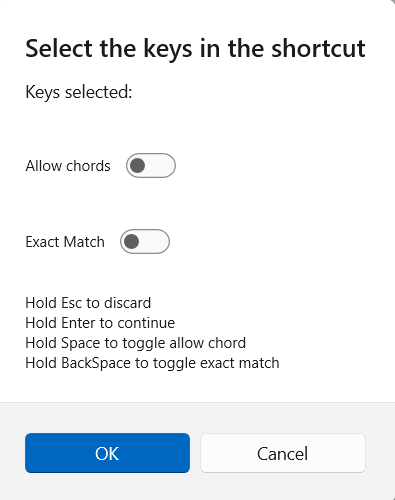
8. A pop-up window will appear asking you to select the keys for your shortcut. To do this, directly type the key selection on your keyboard, in the order you want the keys to be pressed. For example, if you would like the raised u to appear any time you hit Ctrl+Alt+U, then press Ctrl, Alt and then U.
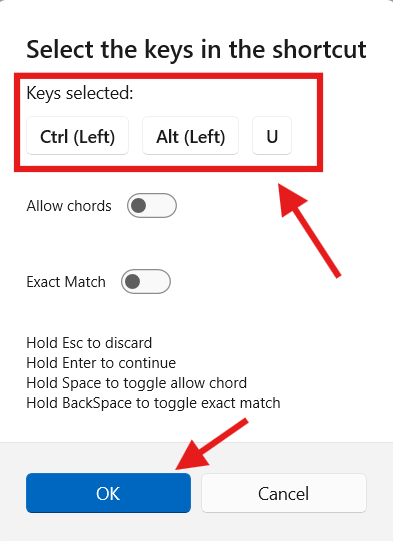
9. Once you have made your key selection, it should appear under “Keys selected”. If you are happy with your key selection, click “OK”, otherwise you can re-type a new key selection to overwrite your current one.
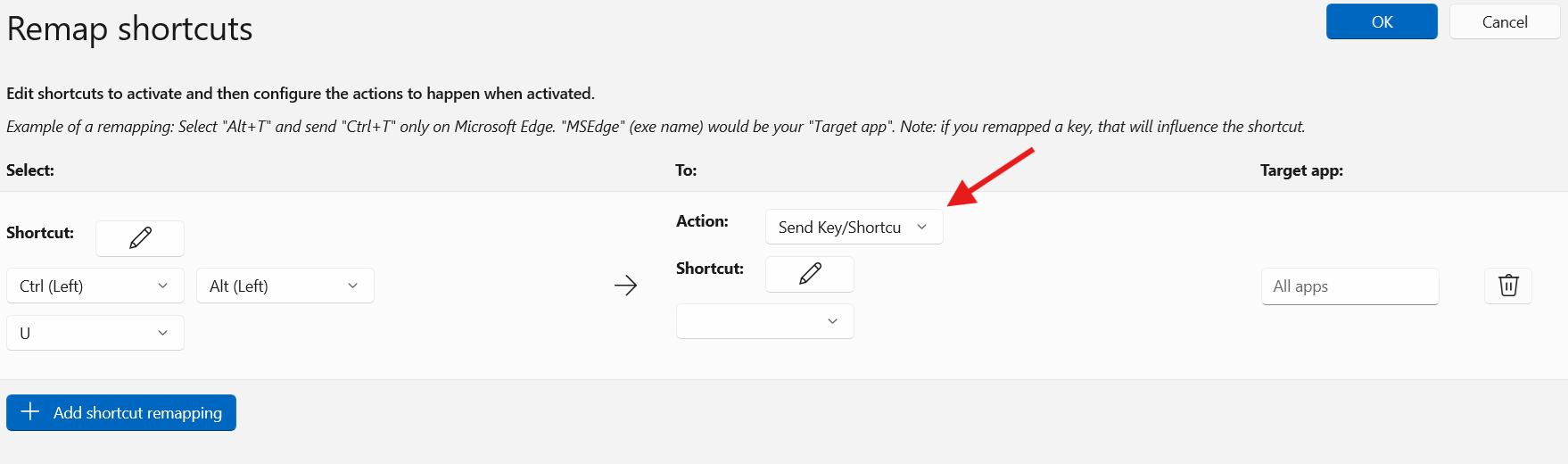
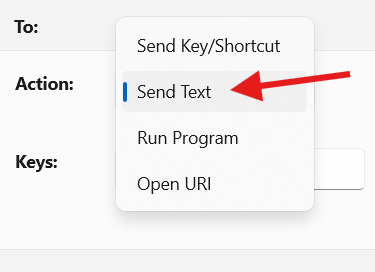
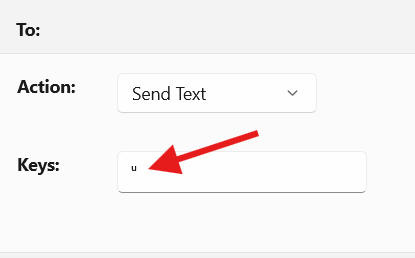
10. Next, in the “To” section, click the dropdown menu next to “Action” and select “Send text”.
11. Next, in the “Keys” box, paste the Unicode character for raised ᵘ. You can do this by copying the character from the Windows Character Map (see here for details on how to do this), or copying it from this webpage here: ᵘ
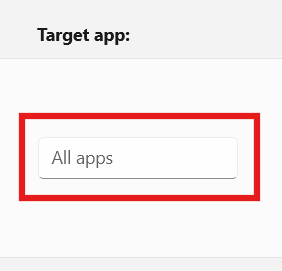
12. For “Target apps” we will leave this set to “All apps” as this will allow the shortcut to be used anywhere (i.e. in a text document, in a web browser, while writing an email, etc.).
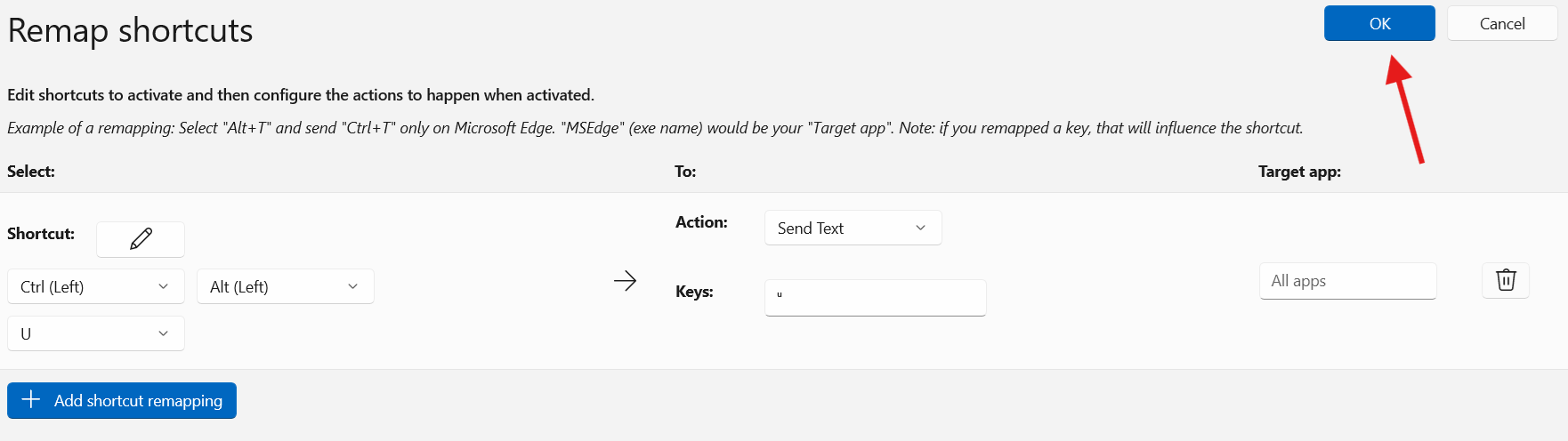
13. After confirming that your key selection, raised ᵘ and “All apps” are all there, click “OK” in the top right to create your shortcut.
14. The “Remap shortcuts” window should automatically close and the “Keyboard Manager” window from before should now show your newly created shortcut under “Shortcuts”.
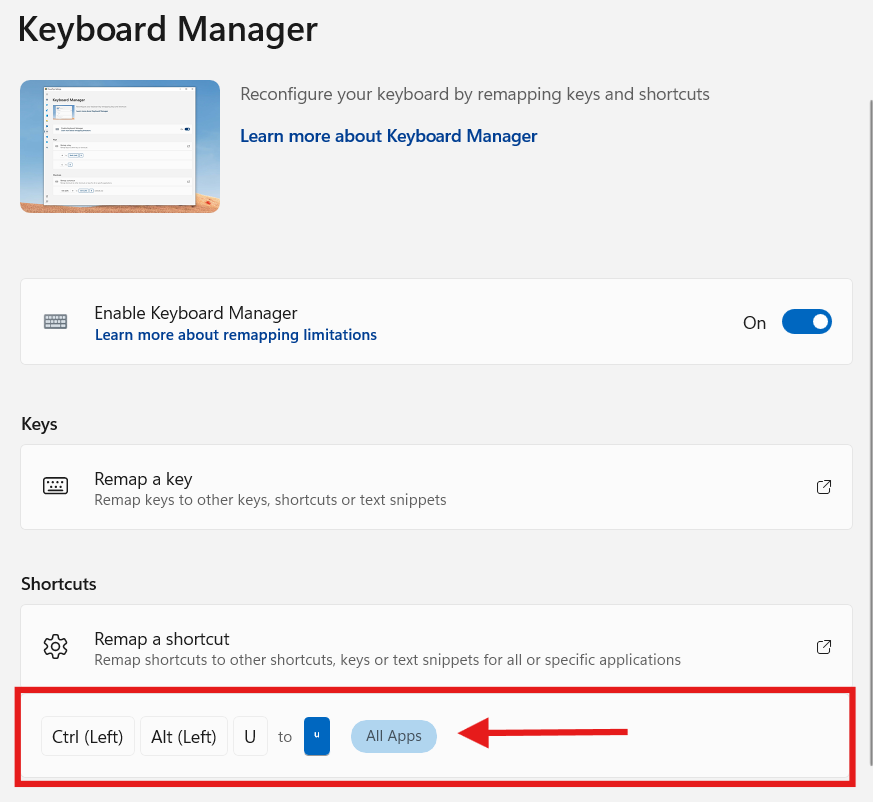
Now you can type the raised ᵘ easily and in any application, just type the keyboard shortcut Ctrl+Alt+u and a raised ᵘ will be inserted!