

Here are two options for typing raised ᵘ on MacOS:
Installing our raised ᵘ keyboard
Similar to previous Innu language keyboards, our keyboard allows you to use your regular keyboard as usual, but with the addition of a pre-programmed keyboard shortcut for typing raised ᵘ.
This is our recommended method for typing raised ᵘ on Mac, as it is quick and easy to install and allows you to type raised ᵘ anywhere with the shortcut Option+Shift+u
1. To start, download the keyboard installer by clicking here.
2. Choose a location to download the file.
3. Locate the downloaded file and double click to unzip it. Then double click the extracted .pkg file to start the keyboard installation.

4. The installer window should now appear, click “Continue” to proceed.
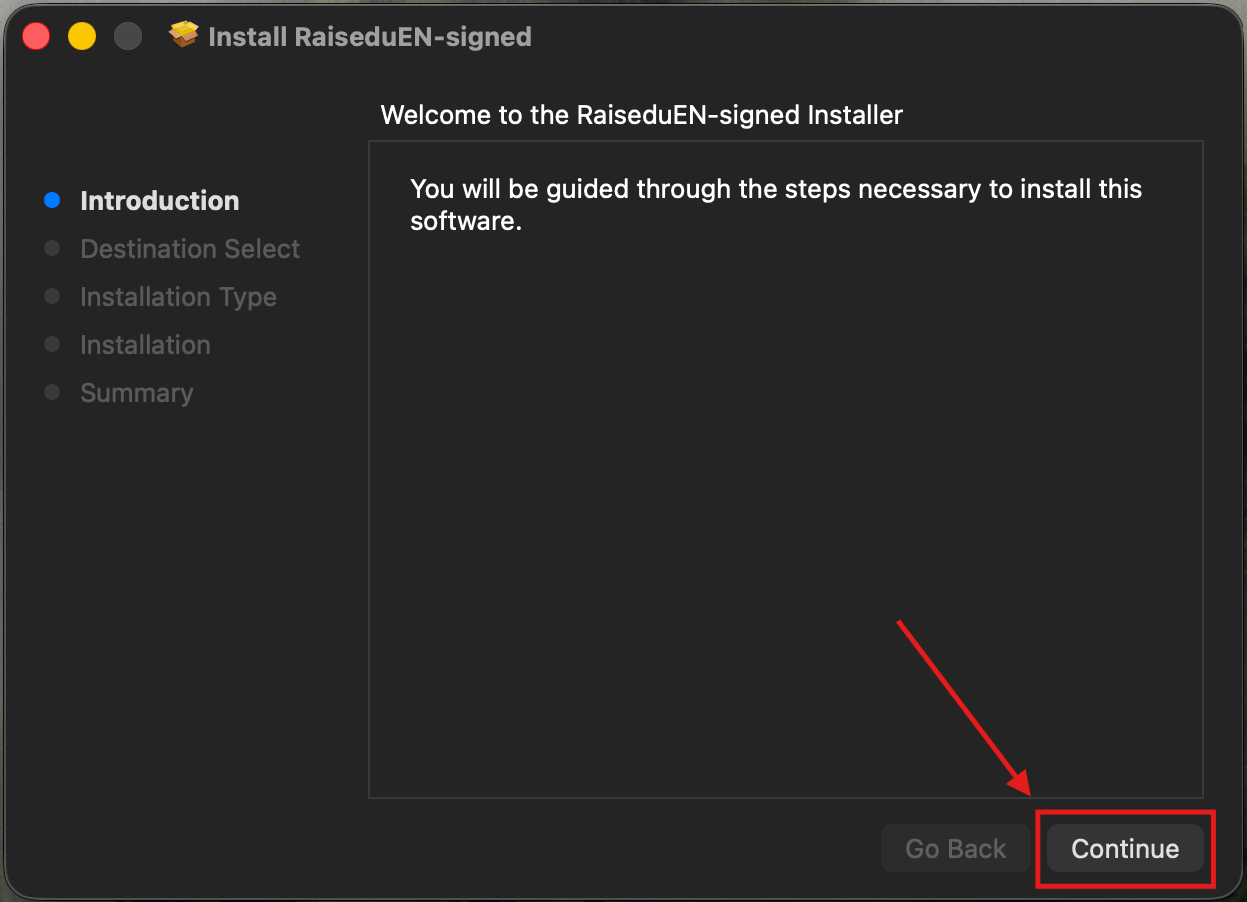
5. Next click “Install”. Important: DO NOT change the install location!
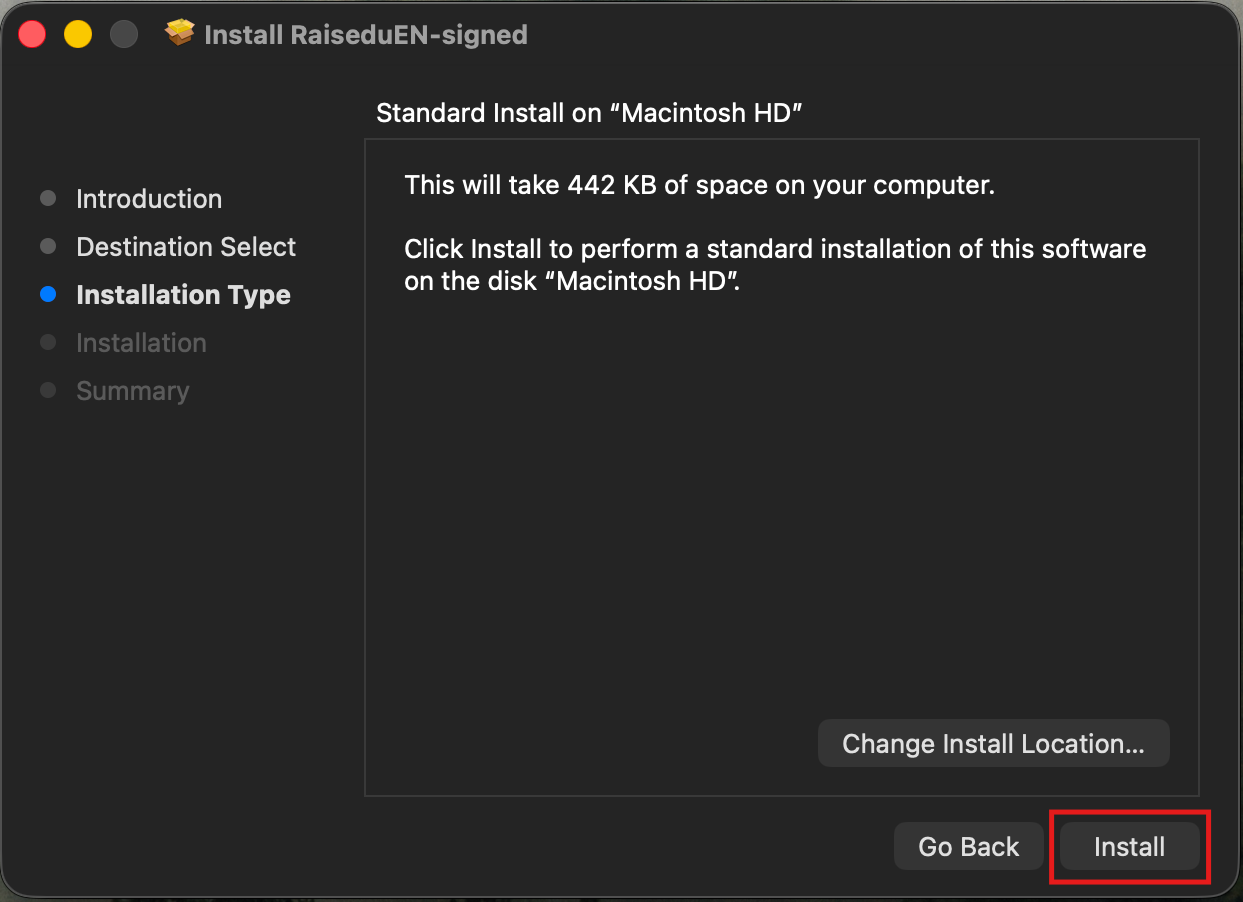
6. Enter your Touch ID or Password to allow the installation.
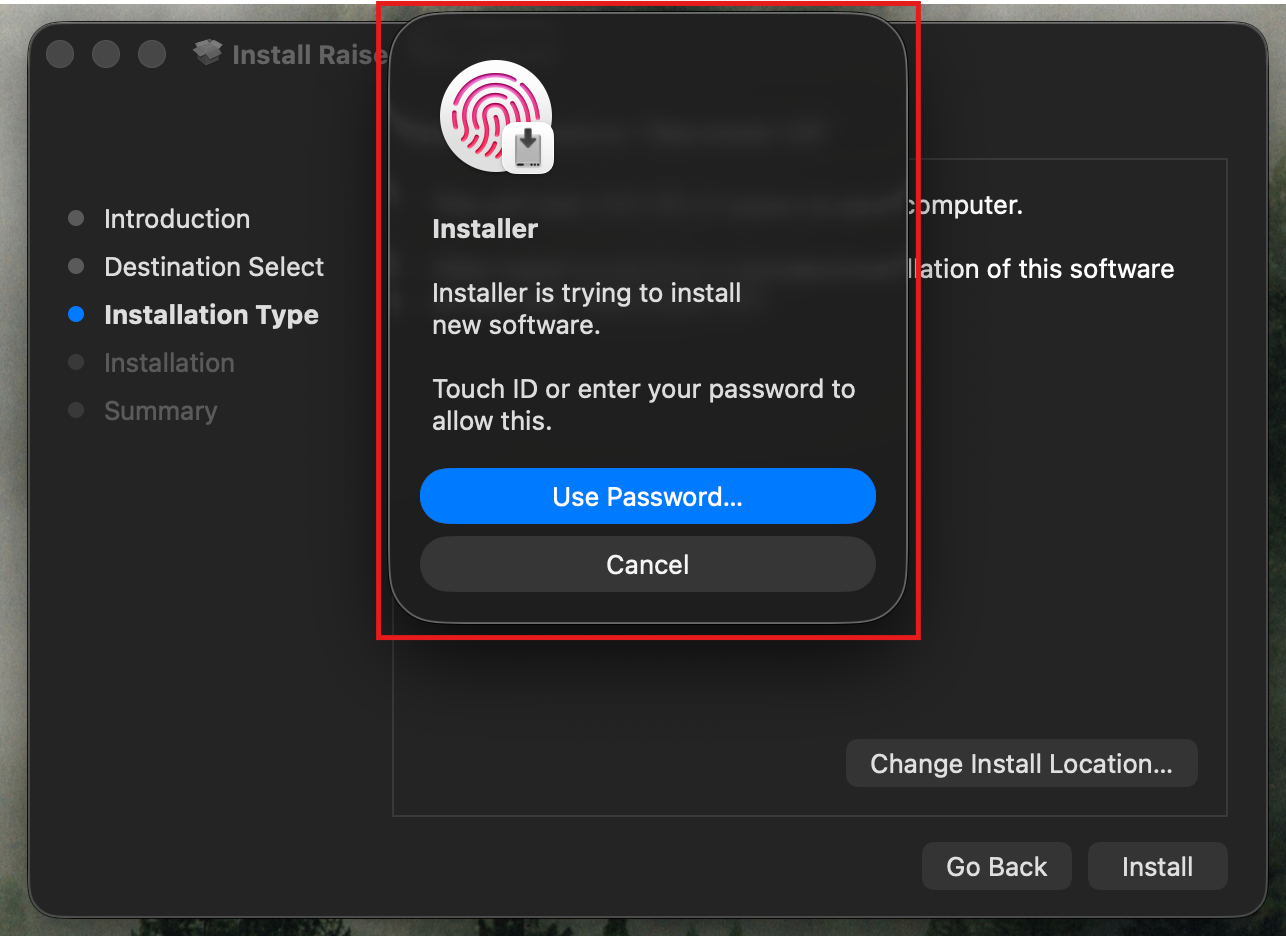
7. After the installation completes, you should see a “The installation was successful” message. Hit “Close”.
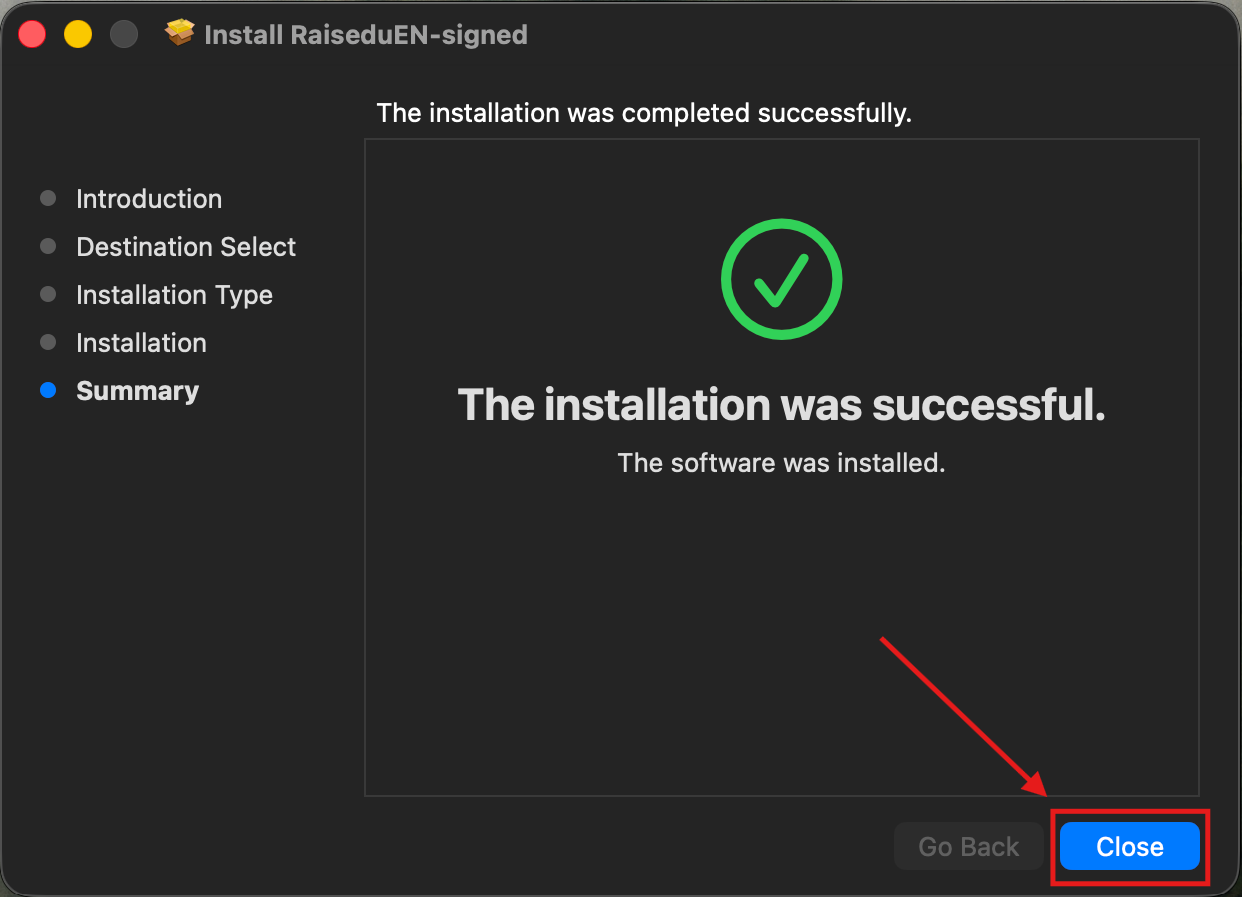
8. Now, in order for the keyboard to work properly, you must restart your computer or log out and log back in. If you try to use the raised ᵘ keyboard immediately, without restarting/logging out, it will not work.
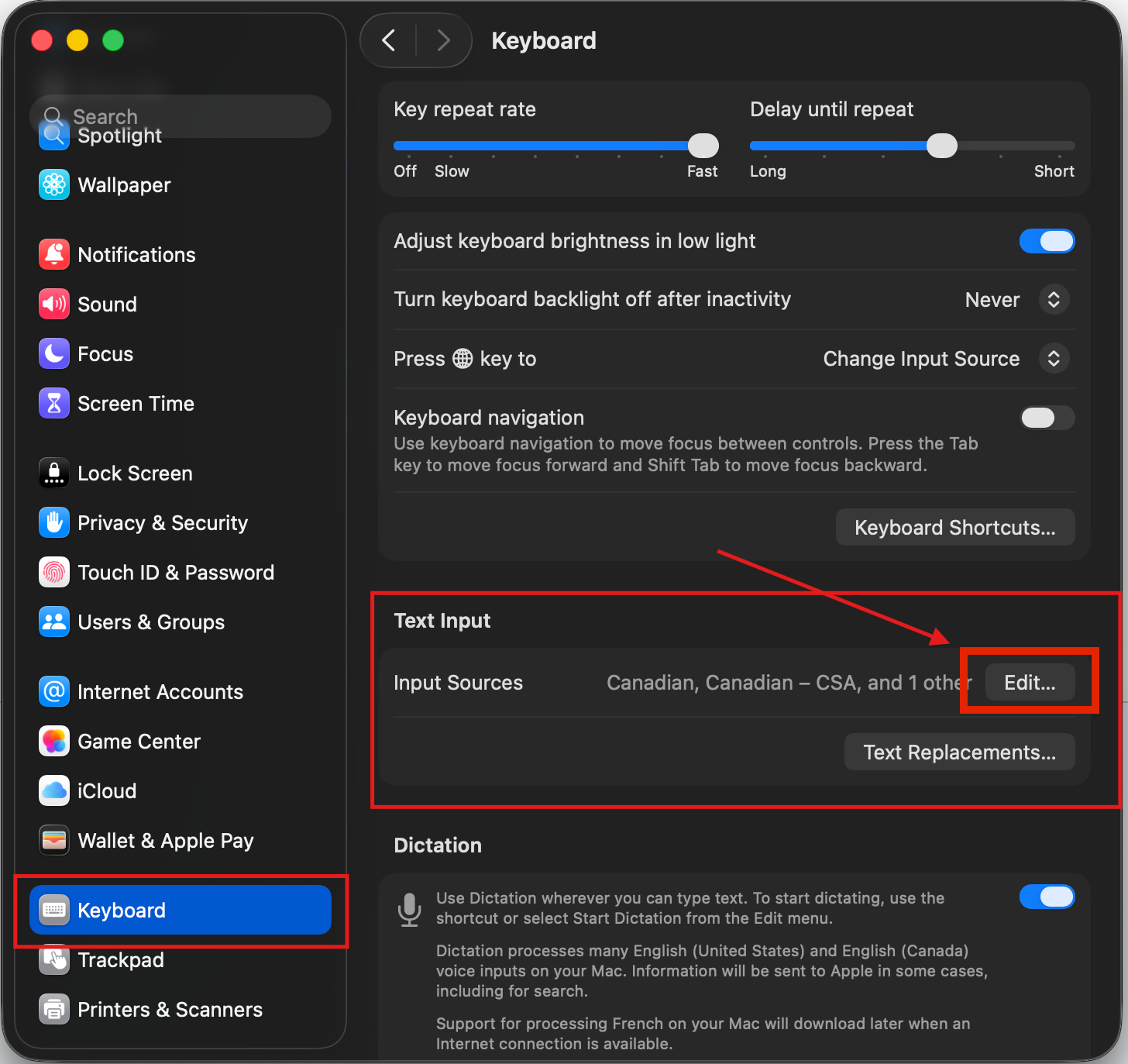
9. After restarting or logging back in, click on the Apple icon on the menu bar in the top left side of your screen. Then go to “System Settings” and then “Keyboard”. You should see a screen that looks something like this for MacOS version 26 and higher. Under “Text Input”, in the “Input Sources” field, click “Edit…”
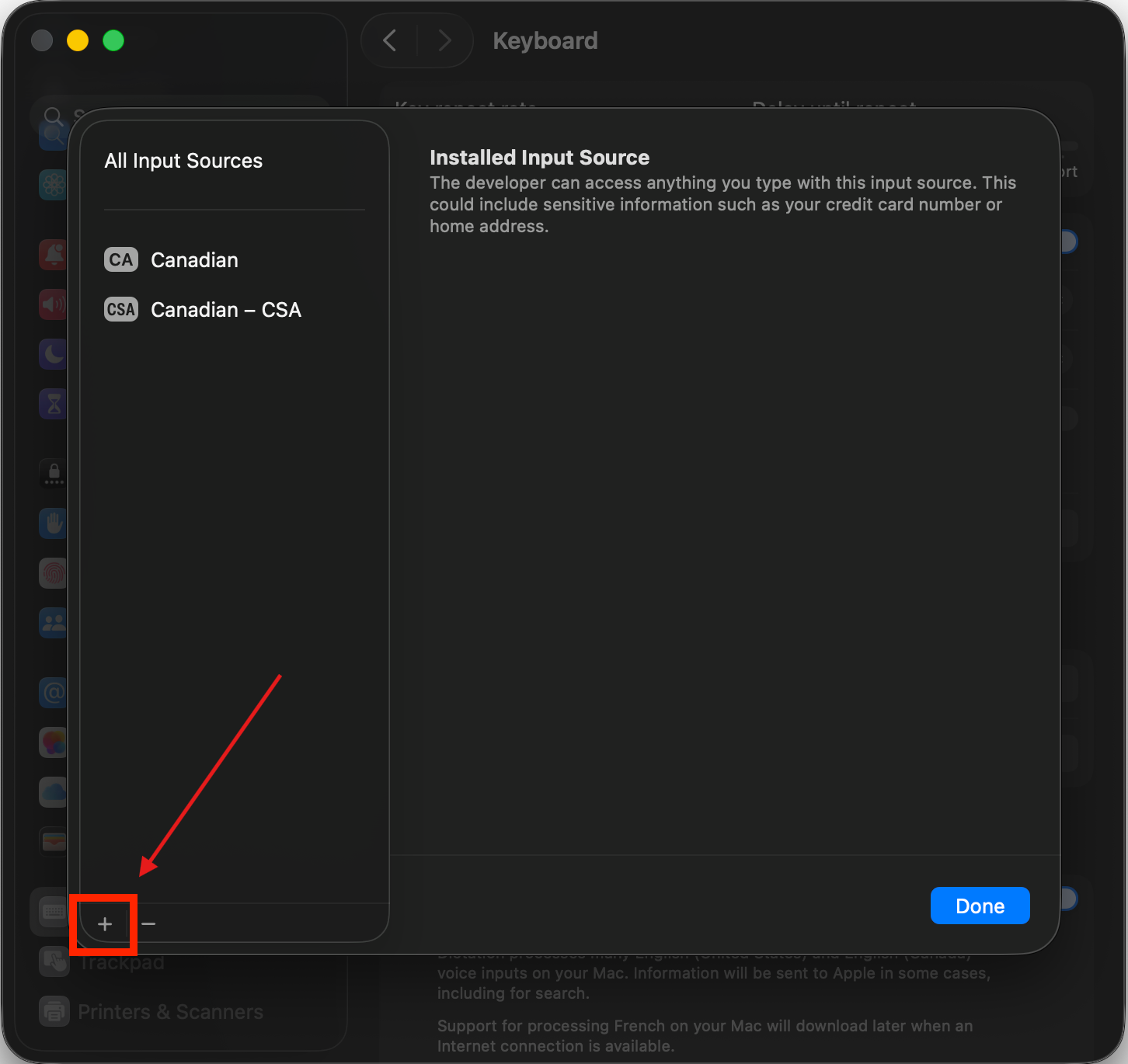
10. You should see your current keyboards in the side panel on the left, click on the add symbol (+) at the bottom of the panel.
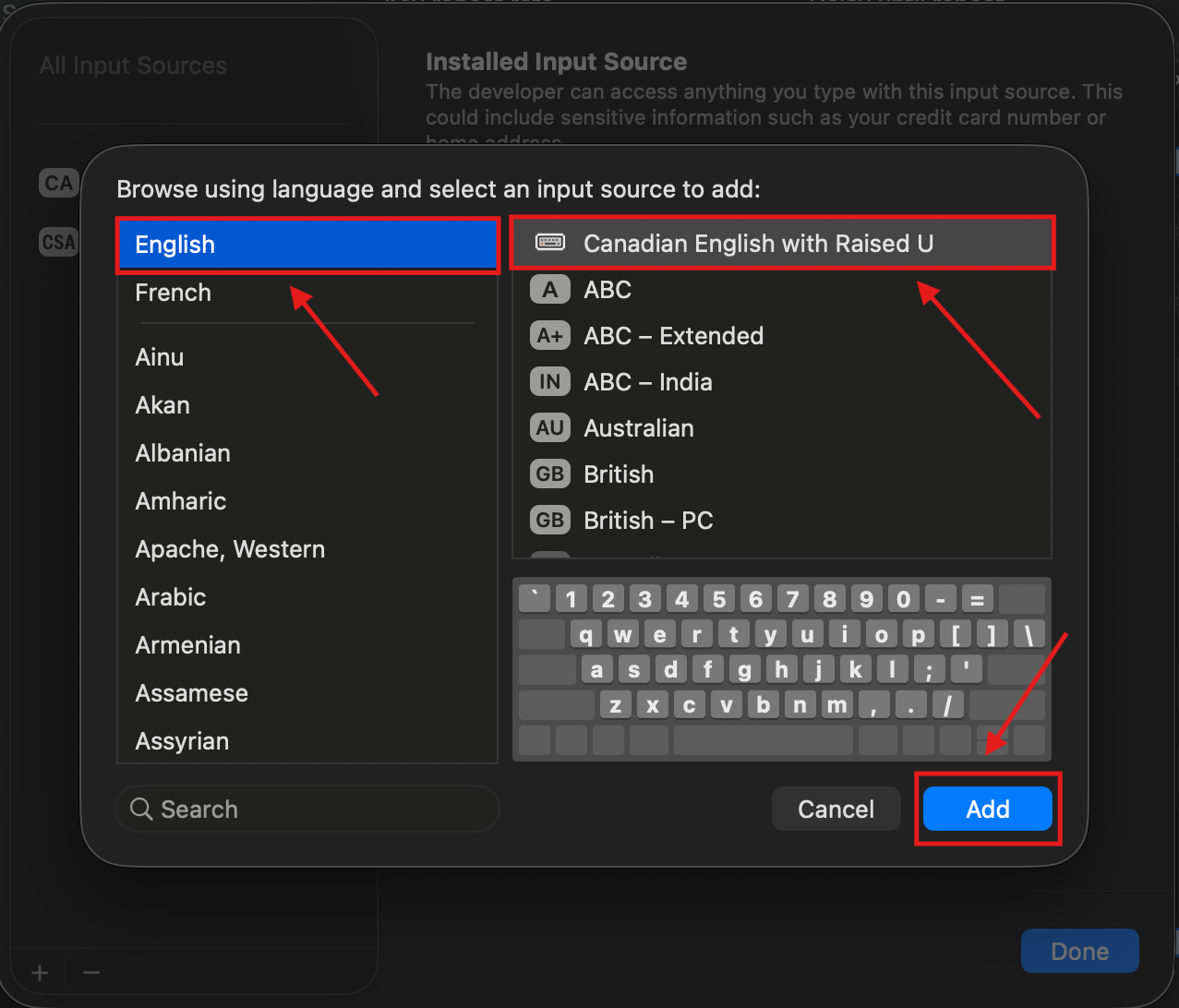
11. In the left side panel, click on English and a series of keyboard options should appear to the right. Click on “Canadian English with Raised U” and then “Add”.
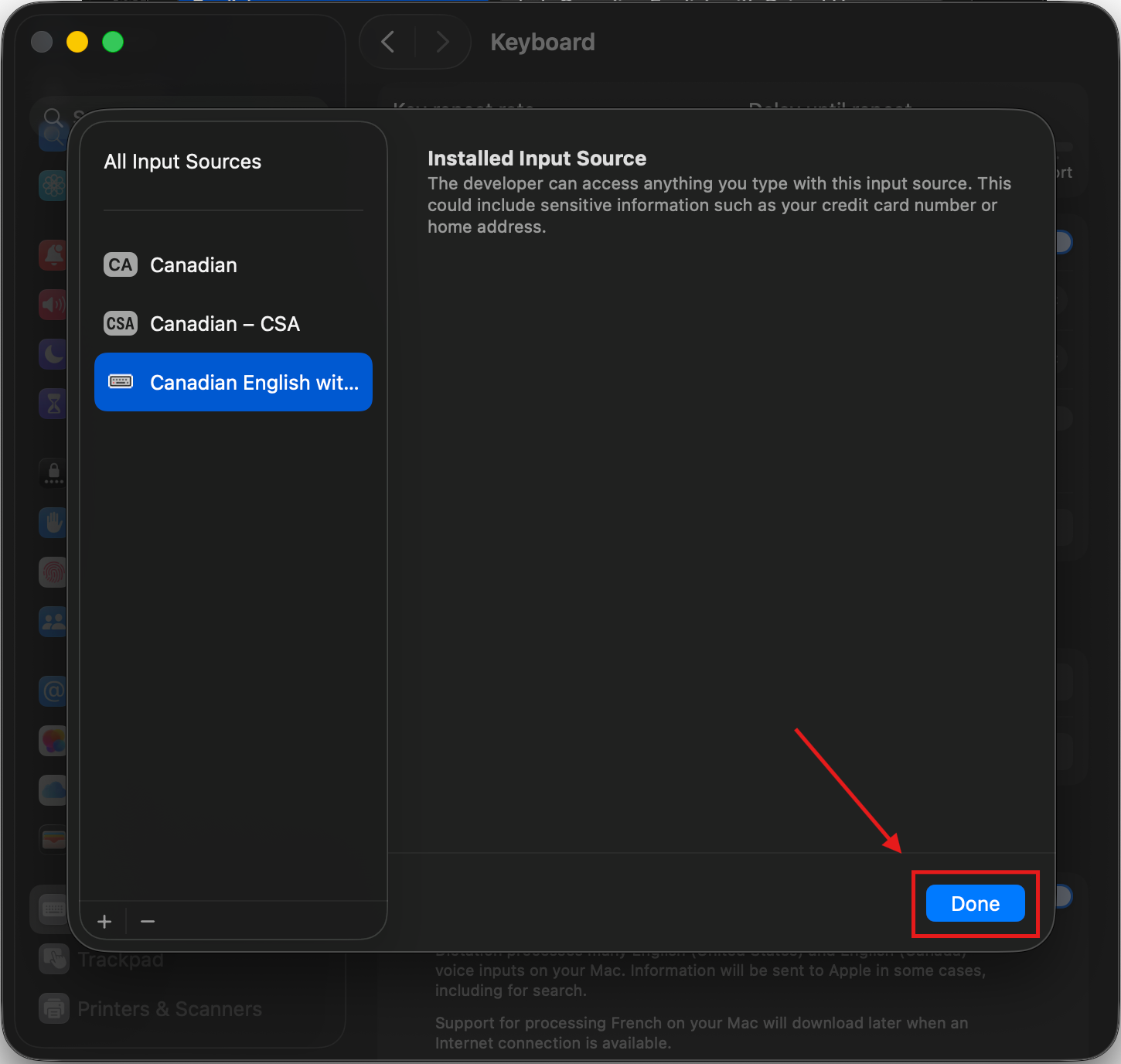
12. After confirming the keyboard has been added to your list of keyboards on the left, click “Done” in the bottom right of the window.
13. Looking at your menu bar at the top of the screen, on the right-hand side, you should now see a keyboard icon or “CA”.

14. Click “CA” or the keyboard icon and then click “Canadian English with Raised U” to select and enable the raised ᵘ keyboard.
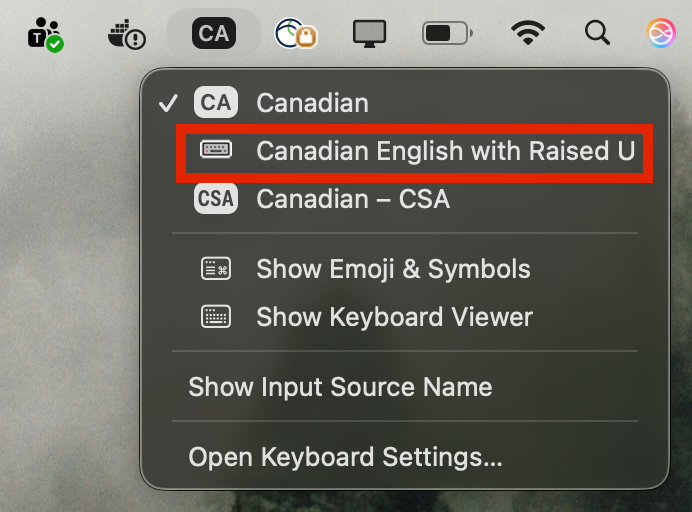
Now you can type raised ᵘ anywhere by using the keyboard shortcut Option ⌥ + Shift + u