Copying raised ᵘ from the Windows Character Map
Copying and pasting the raised ᵘ character from the Windows Character Map is a less convenient solution for typing the unicode raised ᵘ compared to our keyboard, as it has to be re-copied every time you want to type it. However, the copying process is quick and simple and allows you to avoid installing any keyboards or other software.
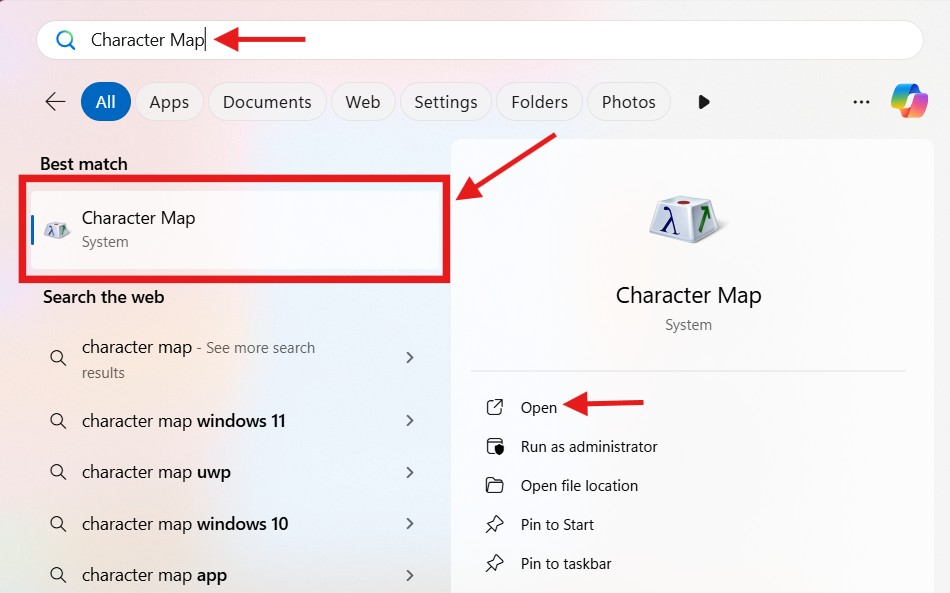
1. Click on the “Start” menu and begin typing “Character Map”. You should see a result with a keyboard key symbol next to it appear. To open it, either click “Character Map” in the results bar on the left or click “Open” in the previewer to the right. This will open the Character Map.
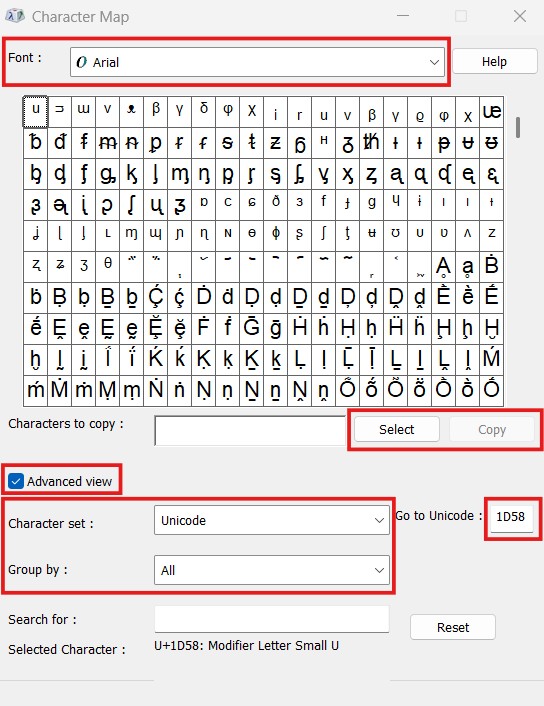
2. Once the Character Map is open, make sure a Unicode font like Arial is selected for “Font” and then click to check the box next to “Advanced view”. Here we want to select “Unicode” for the “Character set” and “All” for “Group by”.
3. Next in the “Go to Unicode” box, type 1D58. This will bring up the raised ᵘ. From here you can hit “Select” and then you’ll be able to click “Copy” to copy the character to your clipboard.