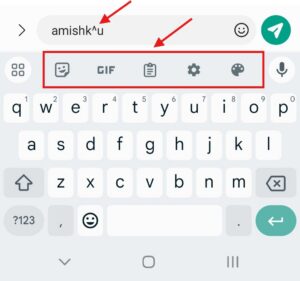
Here are two options for typing raised ᵘ on Android:
1. Clipboard pin (for Gboard keyboards only)
This is our recommended method for typing raised ᵘ on Android as it is the most convenient and allows you to easily type raised ᵘ anywhere.
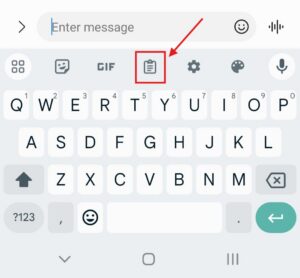
- Click on the clipboard icon on your keyboard.
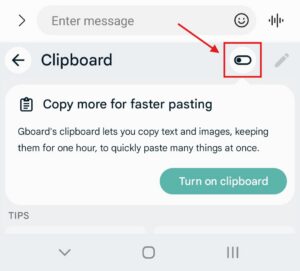
- Enable Clipboard by clicking on the toggle button (if you already have Clipboard enabled you can skip this step).
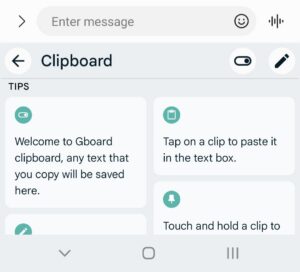
- Once Clipboard in enabled, you should see some tips and information appear (or if you already had Clipboard enabled you will see content you’ve previously copied).
- Copy the raised ᵘ from this page or anywhere else trustworthy.
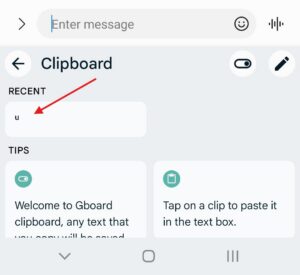
- Now when you click on your Clipboard again you should see the raised ᵘ appear under “Recent”.
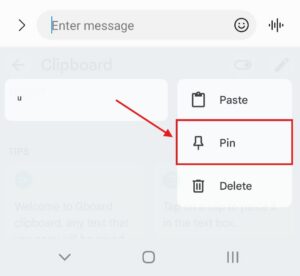
- Press and hold the raised ᵘ under “Recent” and some menu options should appear. Click “Pin”.
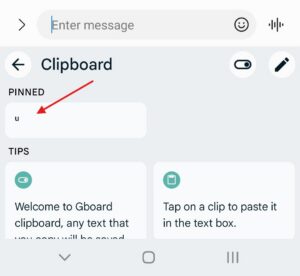
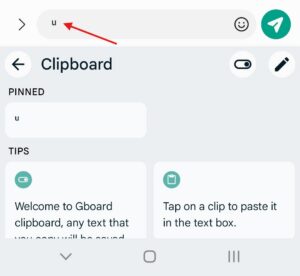
- The raised ᵘ should now appear as “Pinned” in your clipboard and clicking on it should type raised ᵘ.
- Now whenever you would like to type raised ᵘ anywhere on your phone, simply navigate to your clipboard and click the pinned raised ᵘ and it will be inserted wherever you are typing.
2. Text Replacement
Another method of typing raised ᵘ on Android is via text replacement. This method is not as convenient as Clipboard, as text replacement only works to replace WHOLE words, so you’ll have to type the raised ᵘ separately and then backspace to attach it to a word. However, it should work with all Android phones, regardless of whether or not you use Gboard.
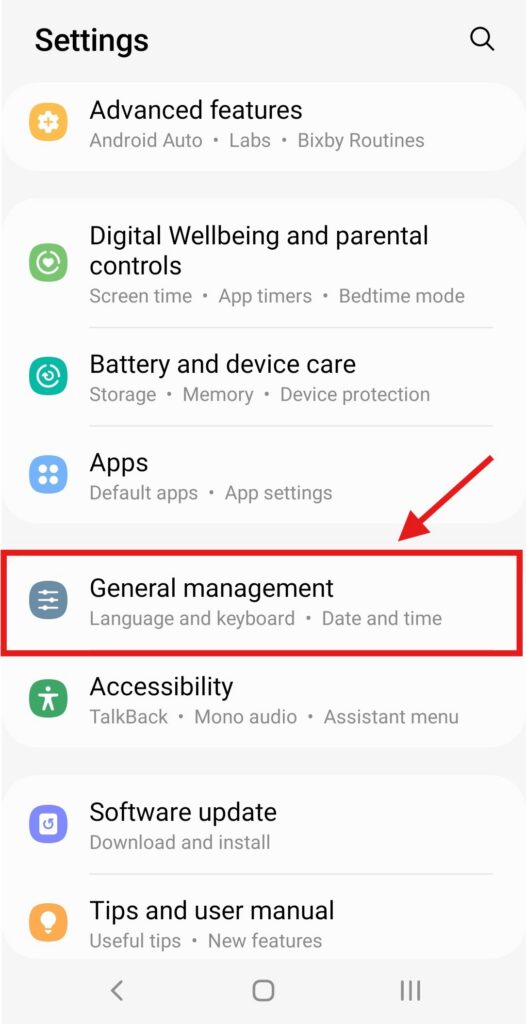
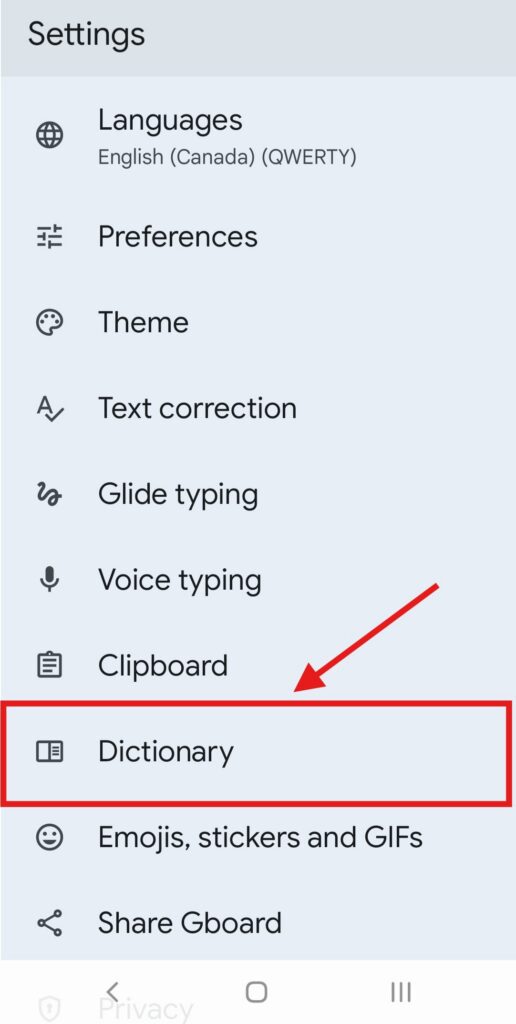
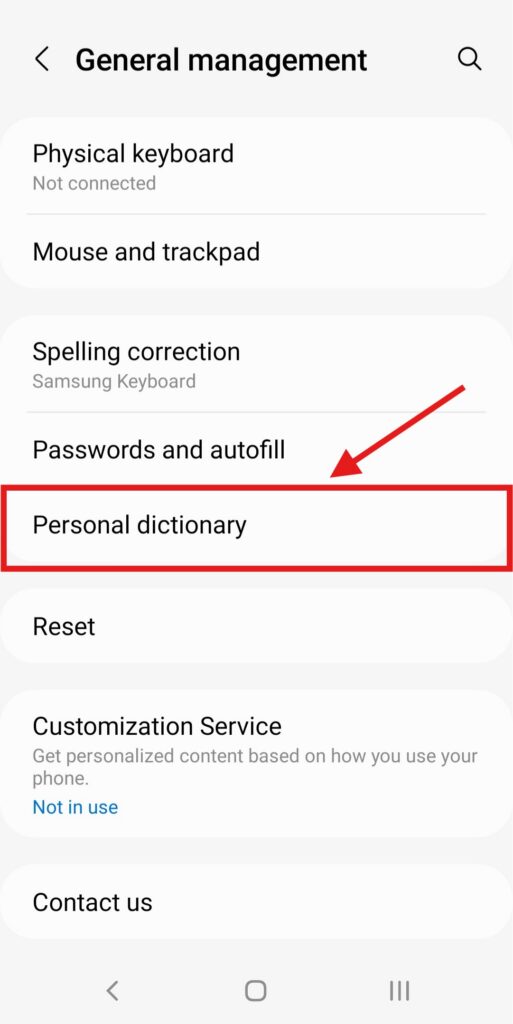
- To start, if you have Gboard, click on the Gboard app on your phone. If you do not have Gboard, navigate to Settings and find the “General management” menu.
- Once inside Gboard’s or the General Management menu, find and click on “Dictionary”/“Personal Dictionary”.
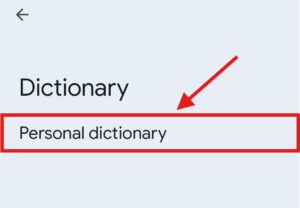
- For Gboard, you must next click on “Personal Dictionary”.
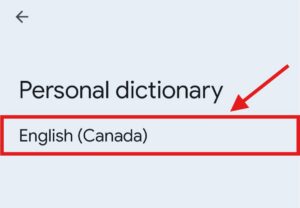
- Once inside the “Personal Dictionary” menu click on the language you want to add the raised ᵘ to, in this case we are selecting English (Canada) but your keyboard may have English (United States).
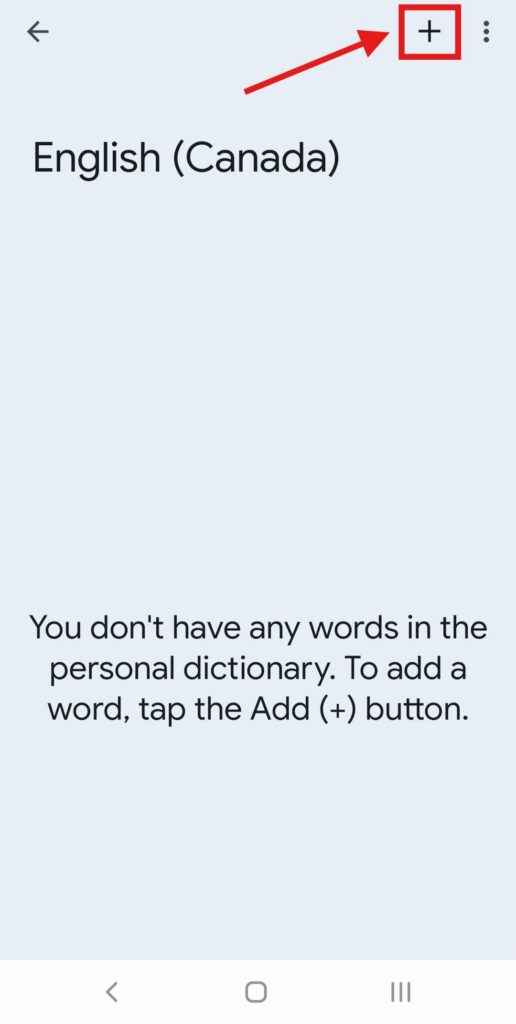
- Once you have selected your language, in the new language menu that opens, click the plus sign (+) in the top right.
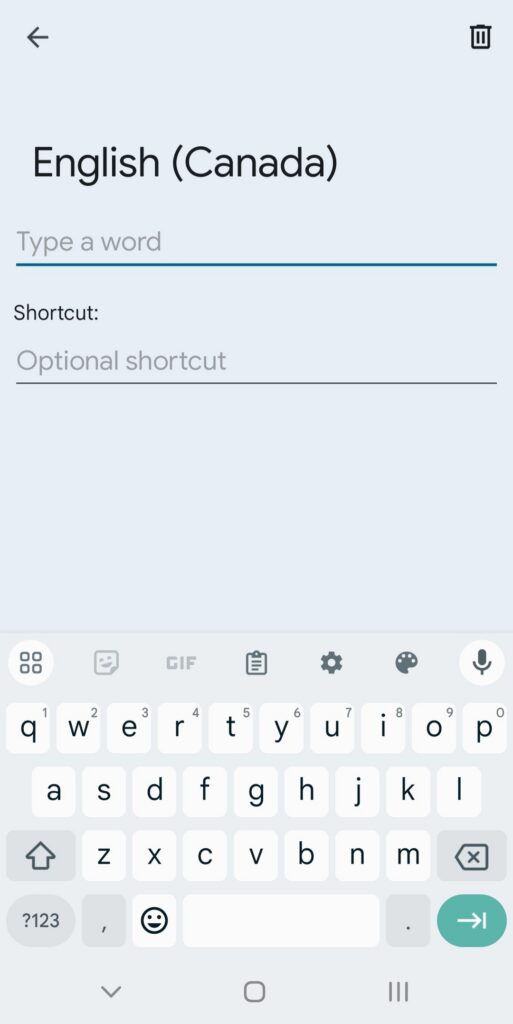
- This will open a shortcut creation menu that should look something like this:
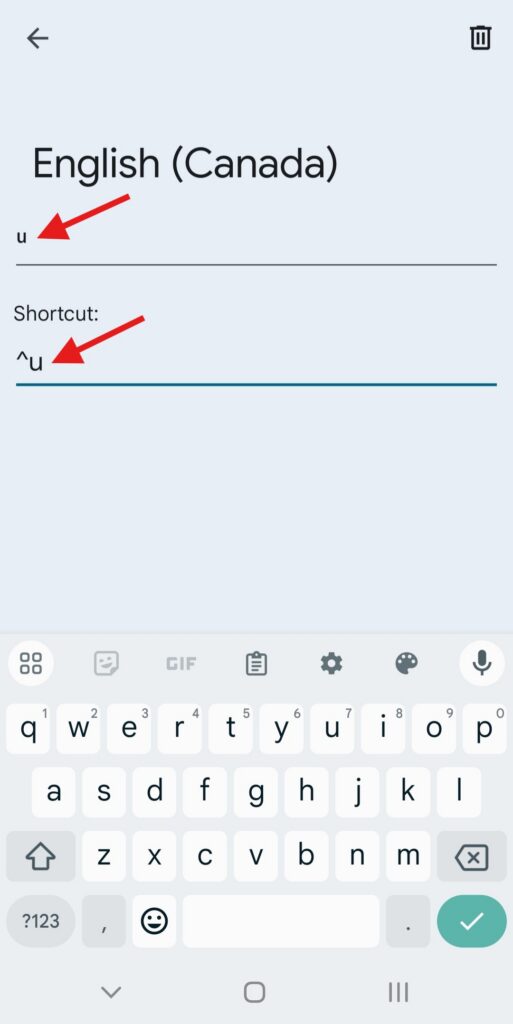
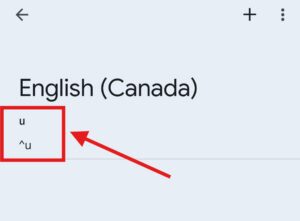
- In the top text field you will need to paste the raised ᵘ character. You can copy it from this page or any other trustworthy source. In the bottom text field, write what shortcut you would like to use to type raised ᵘ, make sure to pick something you are unlikely to type normally, here we’ve used ^u.
- Once you’ve finished entering the information, hit the back arrow in the top left of the screen. You should now see the raised ᵘ and the shortcut you’ve picked.
- Now you will be able to type raised ᵘ by typing your shortcut and then clicking on the suggested replacement in the suggestions bar.
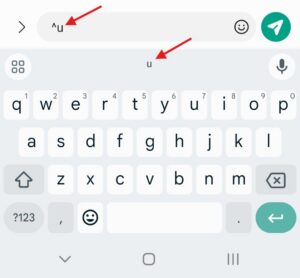
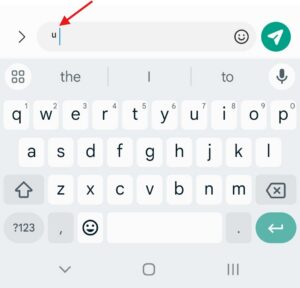
Please note that you must type your shortcut as a separate word, if you try and type your shortcut attached to a word you’re trying to write, the replacement suggestion will not appear.